Many customers report that accounts purchased from sellers suddenly go offline or even get forcibly logged out after some time. This is not a new issue; users have been encountering similar problems for the past couple of years.
Below, we explain the symptoms, causes, and complete solutions in the simplest way.
1. Symptoms
Generally, you'll see one of these two scenarios:
- In the official client, an account that was logged in normally suddenly jumps back to the login screen, requiring re-authentication.
- In software, the log shows: [Current account is invalid (authorization status revoked)]
If either happens, it might not necessarily be the seller kicking you out. First, rule out the following two possibilities.
2. Rule Out These Two Situations
① The account is already dead (invalid)
If the account itself has expired, similar symptoms may appear. This case is unrelated to the topic here, so we won't elaborate.
② Telegram Official Deauthorization
If Telegram deems an account somewhat risky but not enough to ban it, it may revoke all login authorizations and require re-login with an SMS code.
In this case, all devices will be logged out simultaneously, not just a specific one.
If only the device you're using is logged out while others remain normal, it's probably not an official action.
3. The Most Common Cause: The Seller Logged Into Your Account Again
The most frequent scenario is:
- The seller logs into the account again;
- One account sold to multiple buyers;
- Or reselling the same account.
In short, even after you purchase the account, the seller still retains the ability to log in.
4. Why Can the Seller Still Kick You Out?
Currently, common account types are mainly two:
- tdata accounts (direct login)
- session accounts (protocol login)
Both are essentially login authorization files, just saved in different formats.
The difference:
tdata can be placed directly into the official client;
session is typically used for software or protocol logins and cannot directly open the official client.
Let's use tdata as an example.
After purchasing, the seller usually provides a compressed archive. Extract it, place the official client in the corresponding directory, and the account will log in automatically.
The first thing many people do after logging in is go to:
Settings → Privacy and Security → Active Devices
and terminate all other devices.
Many think this makes them safe, but it doesn't.
The reason is simple.
The tdata authorization file you're using to log in was provided by the seller.
Since you can use that authorization to log in, the seller can also use it to log in again.
You only kicked out other devices that were online at that moment, but you didn't change the authorization you're currently using.
You might ask: Why do I get logged out when they log in again?
The reason:
The seller can first use the original authorization to log into another device, generate a new authorization, and then revoke the old one.
Thus, your current authorization becomes invalid while the seller's new authorization remains usable.
The exact same principle applies to session accounts.
5. Complete Solutions
Method 1: Manual (Official Client)
After purchase, follow this sequence:
- Go to Settings → Privacy and Security, first terminate other devices.
- Then log the account into another new client (computer or phone, just a fresh login).
- Once the new device logs in successfully, return to the original client.
- Do not simply close the app; instead, go to: Settings → three-dot menu (top right) → Log Out.
The purpose is to discard the original authorization the seller gave you and keep only your newly generated one.
After that, even if the seller still has the old authorization, they can no longer use it to regain control.
Method 2: Using Software
For tdata accounts:
In the account security module, check:
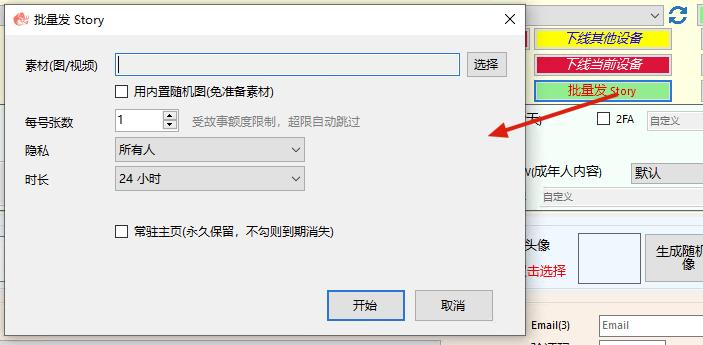
- ✅ Terminate other devices
- ✅ Log out original tdata device
Then execute.
For session accounts:
When importing, check all three security options.
After completing these steps, the account's login authorization is completely yours.
As for the two-step verification password, changing it afterward won't affect this issue; you can decide based on your needs.
6. What About Verification Code (API) Accounts?
These are also called API accounts.
The key difference from tdata/session is:
You never obtain the account's initial login authorization.
The true original authorization is stored on the seller's server; you simply receive an SMS code via their website to log in.
So the handling method is different.
Steps
After successful login:
- Wait 24 hours, then go to: Settings → Privacy and Security → Active Devices
- Terminate all other devices.
No other extra steps are needed.
Once you terminate them, the original authorization on the seller's server also becomes invalid.
Why wait 24 hours?
This is an official Telegram restriction.
A newly logged-in device must have been online for at least 24 hours before it can terminate other devices.
Therefore, if you try earlier, you won't be able to clean the authorizations.