MMX Telegram Marketing Assistant Account Management Area Feature Overview
Today, a new customer said our software is too complex, like entering an airplane cockpit. I think that's a great analogy—we are the best pilots for flying Telegram.
Note: Except for the desktop TData format, simulating phone login requires our token. For what a token is, please refer to the token chapter.
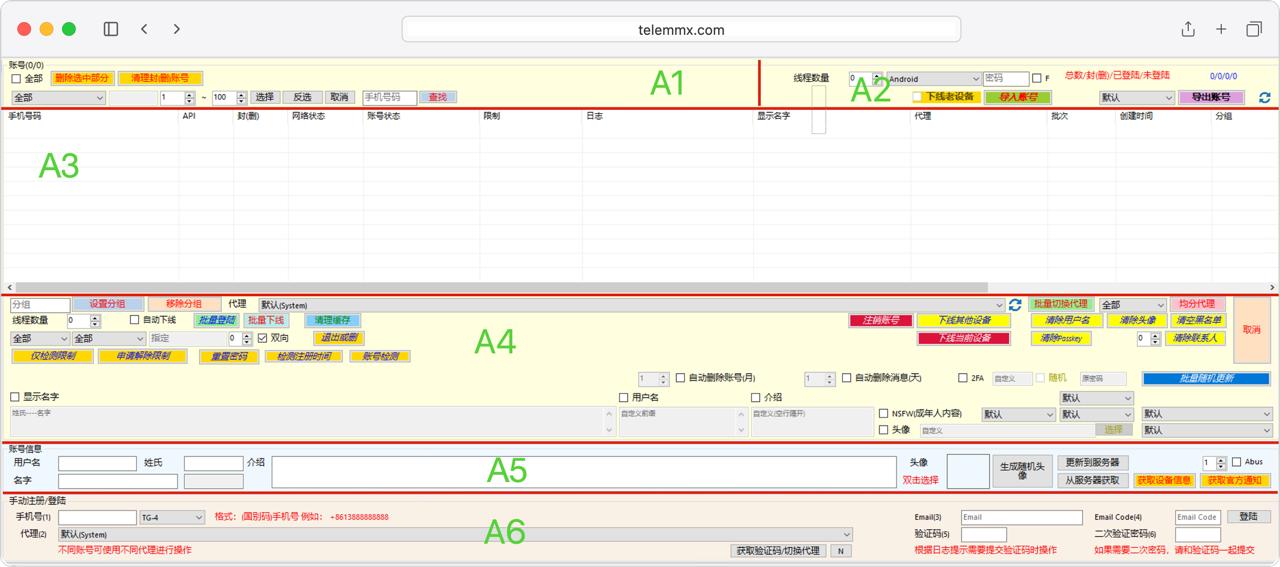
Based on the six functional areas A1 to A6 in the diagram, here is a software usage guide:
A1: Top Filtering and Basic Operations
This area is mainly for quickly filtering and basic management of the account list.
- Account Cleanup: Check "Select All" and use "Delete Selected" or "Clean Banned/Deleted Accounts" to remove invalid or unwanted accounts.
- Range Selection: Enter a number range (e.g., 1 ~ 100) and use "Select", "Invert Selection", and "Cancel" to quickly locate specific batches.
- Precise Search: Enter a specific phone number in the input box and click "Search" to quickly locate a single account.
A2: Import and Export Area
We support json+session (phone), tdata (desktop), jQO, and Passkey formats—covering 99% of formats on the market.
This area controls global runtime parameters and account data flow.
- Runtime Parameters: Set "Thread Count" to control concurrency speed; dropdown menu to select simulated device type (e.g., Android). "New" suffix indicates login as a new device. Supported formats: Android, Android-New, Android-X, Android-X-New, Android-G, iOS, iOS-New, Desktop, Desktop-New, MacOS, MacOS-New, Tdata, Android-Passkey-New, Desktop-Passkey-New, iOS-Passkey-New, MacOS-Passkey-New.
- Device Management: "Logout Old Devices" feature to ensure account security.
- Data Flow: Use "Import Accounts" to batch load external data; after operations, use "Export Accounts" to save the current state. Top-right corner shows real-time account statistics (Total/Banned/Logged In/Not Logged In).
A3: Account Data List View
This is the core data display area, showing real-time status of all loaded accounts in a table format.
- Core Info Columns: Phone number, API status, banned status, network status, and account status.
- Security & Logs: Shows if an account is "restricted" and provides a "Log" column for troubleshooting.
- Other Attributes: Display name, bound proxy IP, batch number, creation time, and group assignment.
A4: Batch Control and Automation
This area centralizes advanced commands and automation settings for multiple accounts simultaneously, key for efficiency.
- Status & Cache Control: Supports "Batch Login", "Batch Logout", and "Clear Cache".
- Security & Detection: "Check Restrictions Only", "Request Unrestrict", "Reset Password", and "Account Check".
- Privacy Cleaning: One-click "Logout Other Devices", "Clear Username", "Clear Avatar", "Clear Blacklist", "Clear Contacts", clear Telegram blacklist, account PassKey.
- Proxy & Automation: "Batch Switch Proxy" and scheduled tasks (e.g., "Auto Delete Account", "Auto Delete Messages").
- Right side offers powerful "Batch Random Update" to randomly generate or modify names, usernames, bios, and avatars.
- One-click hide/show username, name, phone number, ability to be added to groups, hide/show user info, modify device region and language.
A5: Single Account Profile Editing
When a specific account is selected in the A3 list, detailed modifications can be made here.
- Profile Edit: Manually edit username, first name, last name, and bio.
- Avatar Management: Double-click the blank box to select a local image as avatar, or click "Generate Random Avatar".
- Cloud Sync: Click "Update to Server" to apply changes, or "Fetch from Server" to sync latest data.
- Get Official Notifications: Retrieve Telegram notifications like login codes.
- Get Device Info: Retrieve current logged-in device information.
A6: Manual Registration and Login
For manual verification, login, or new account registration of a single account.
- Basic Info Input: Enter phone number (1) with international code, select a specific proxy (2).
- Verification Code: Click "Get Code/Switch Proxy" to request SMS verification. If email is needed, fill in Email and received Email Code on the right.
- 2FA and Login: Enter the SMS code in "Verification Code (5)", if 2FA is enabled, enter password in "2FA Password (6)", then click "Login".